
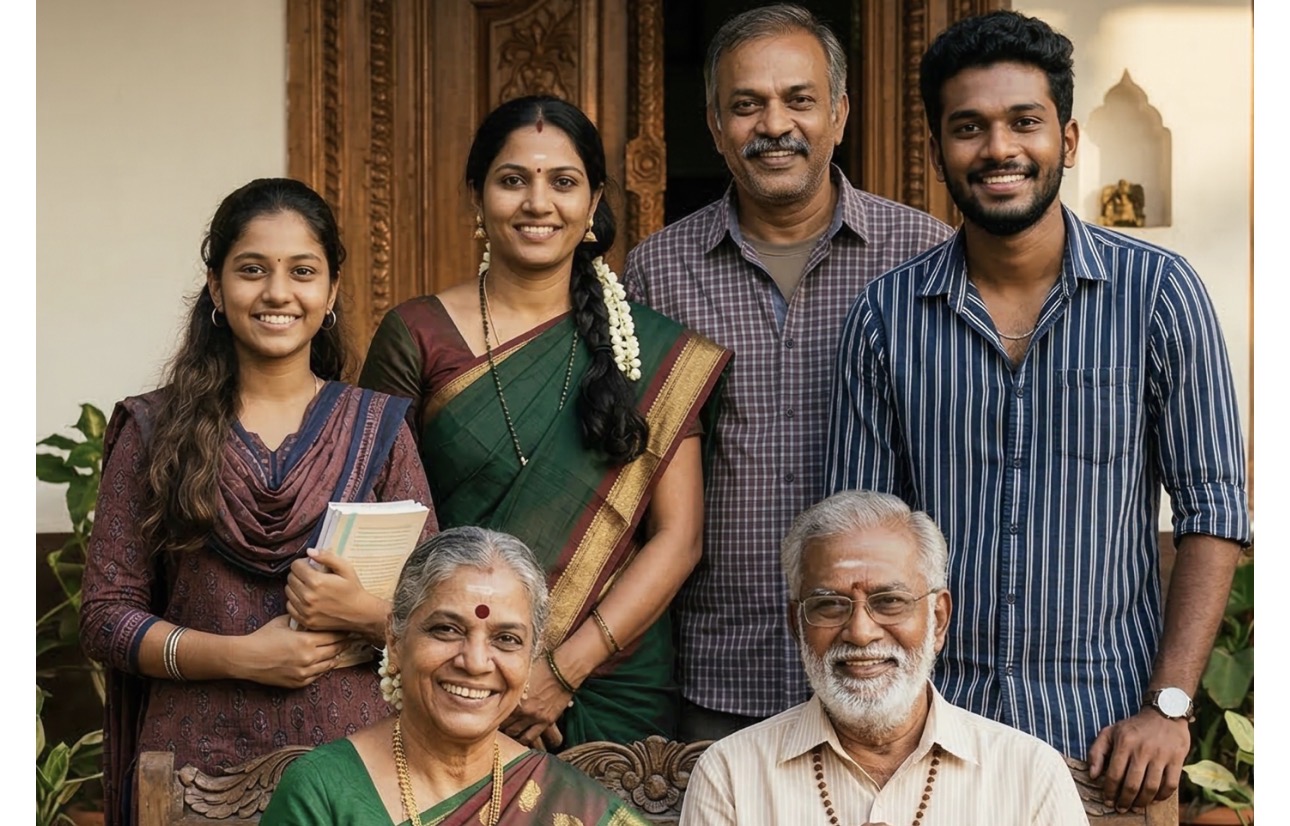
In a world where families are often spread across different cities or countries, getting everyone into a single room for a family photo can feel impossible. Fortunately, you can use Gemini to bridge that distance.
By uploading separate photos of individual family members, you can use Gemini’s multi-image composition features to generate a unified, realistic family portrait. Here is the step-by-step guide to making it happen.
Step 1: Gather the Right Photos
The AI needs good references to capture the likeness of your family members. For the best results, follow these guidelines when selecting your individual photos:
- Clear and Unobscured: Choose photos where the person’s face is clearly visible, well-lit, and not covered by sunglasses or heavy shadows.
- High Quality: Avoid heavily compressed, blurry, or pixelated images.
- Neutral or Natural Expressions: A natural smile or a relaxed expression translates best when the AI attempts to blend multiple people into a cohesive scene.
Step 2: Upload to Gemini
Start a new chat with Gemini. Before typing anything, use the attachment tool (usually a plus icon or paperclip) to upload the individual photos of your family members. You can upload multiple images in a single prompt.
Step 3: Craft a Highly Specific Prompt
The secret to a great AI image is a meticulously detailed prompt. You need to tell Gemini exactly how to arrange the people, what they should wear, and where they are.
Here is a formula for a successful prompt:
- Define the Output: Start by stating exactly what you want (e.g., “Create a highly realistic, DSLR-quality family portrait in a 9:16 vertical ratio”).
- Assign Roles and Ages: Tell the AI who is who. (e.g., “Analyze the uploaded photos. The older man and woman are the grandparents, the middle-aged couple are the parents, and the younger individuals are the children”).
- Specify Poses and Composition: Describe how they should be arranged so it looks natural. (e.g., “Seat the grandparents in the center on a wooden bench, with the parents standing behind them, and the children standing on the sides”).
- Dictate the Wardrobe: Give clear instructions on what they should be wearing to ensure color harmony. (e.g., “Dress them in coordinated, traditional South Indian attire—silk sarees for the women and kurta-pajamas for the men”).
- Set the Scene: Describe the background and lighting. (e.g., “Place them in the courtyard of a traditional home with warm, natural sunlight”).
Step 4: Refine and Iterate
AI generation rarely gets it perfect on the very first try. Once Gemini generates the image, look closely at the details. If something is off, you can simply reply with a correction.
- Example: “Change the mother’s saree from red to green,” or “Make the lighting a bit softer.”
A Quick Reality Check on AI Portraits
While Gemini is incredibly powerful, it is important to have realistic expectations about how AI handles real human faces:
- Likeness vs. Exact Clones: Generative AI redraws the faces to match the lighting, angle, and environment of the new scene. It will create a very strong likeness of your family members, but it is not a 1:1 pixel-perfect copy-paste job like traditional Photoshop.
- Safety Guardrails: To prevent the creation of deepfakes, AI models sometimes apply slight stylistic alterations to real faces. If your prompt demands “100% exact facial preservation,” the AI will do its best to maintain identity, but you may notice a slight “painted” or smoothed effect.