
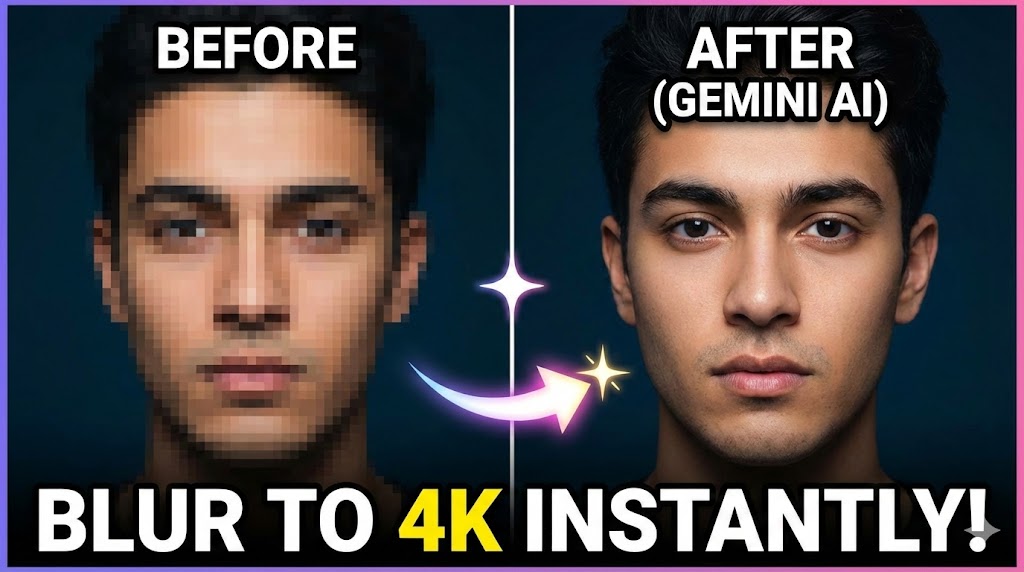
Turning a low-quality, blurry photo into a crisp 4K image using Gemini requires understanding how its “multimodal” capabilities work. Unlike traditional photo editors that just sharpen pixels, Gemini uses Generative AI to “re-imagine” the details.
This means it doesn’t just “fix” the blur; it often re-draws the blurry parts based on what it thinks should be there.
Here is a guide on how to use Gemini to enhance your photos.
Method 1: The “Re-Imagining” Technique (Best for Gemini Advanced/Plus)
This method uses Gemini’s image-to-image capabilities. You upload your blurry photo and ask Gemini to generate a high-definition variation of it.
Step 1: Upload Your Photo
- Open Gemini.
- Click the “Upload Image” icon (or the
+button) and select your low-quality photo.
Step 2: Enter the “Upscale” Prompt Success depends almost entirely on your prompt. You need to tell Gemini to keep the structure identical but upgrade the quality.
Copy and paste this prompt:
🎯 Premium Portrait Enhancement Prompt
Click below to unlock copy option
Step 3: Refine the Result
- If the face looks different: Gemini might “hallucinate” a new face because the original was too blurry. Reply: “The face looks too different. Please regenerate, sticking strictly to the original facial structure.”
- If it looks cartoonish: Reply: “The output looks too digital/smooth. Add realistic skin texture and film grain to make it look like a photograph.”
⚠️ Important Warning: Because Gemini generates new pixels, it may alter text in the background or small details (like jewelry patterns). Always compare the result with your original.
Method 2: The “Google Photos” Integration (Best for Accuracy)
If you are using a Google Pixel or have a Google One subscription, the “Gemini-class” AI models are integrated directly into Google Photos under the “Magic Editor” and “Unblur” tools. This is safer than the chat interface because it doesn’t “hallucinate” new objects.
- Open the photo in the Google Photos app.
- Tap Edit > Tools.
- Select “Unblur”.
- How it works: The AI analyzes the motion path of the blur and mathematically reverses it.
- Save a Copy.
Note: While this fixes blur, it technically doesn’t “upscale” a 480p image to 4K resolution (3840 x 2160). For true resolution increase, combine this with Method 1.
Method 3: Advanced “Detail Injection” (For Complex Scenes)
If your image is complex (e.g., a crowd or a detailed landscape), Gemini might struggle to upscale everything at once. Use the “Sector Method.”
- Crop your image into 4 equal quadrants (Top-Left, Top-Right, etc.).
- Upload one quadrant to Gemini.
- Prompt: “Upscale this section of a larger image to 4K resolution. Maintain edge consistency.”
- Repeat for all 4 distinct sections.
- Stitch them back together in a tool like Photoshop or a free online collage maker.
- Why this works: It forces Gemini to focus all its processing power on a smaller area, resulting in much higher localized detail.