
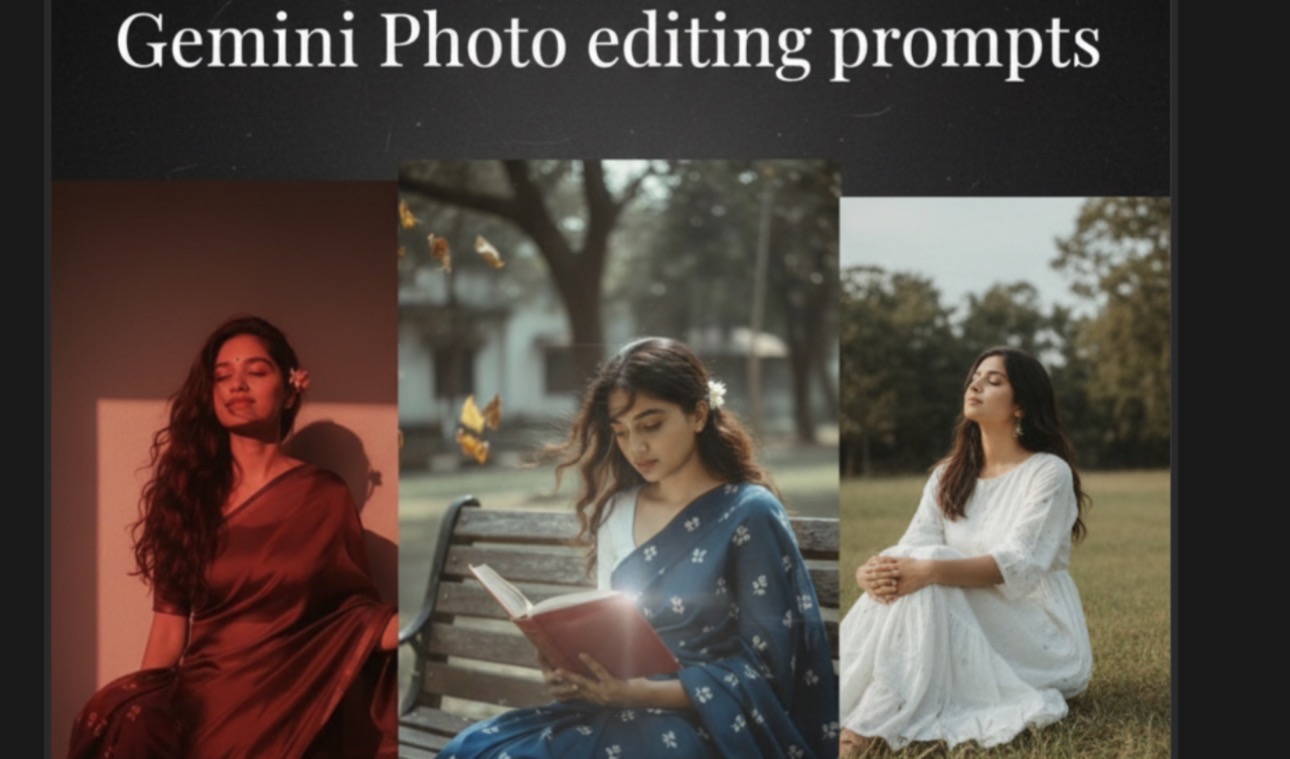
Meta Description: Discover how to edit photos using Google Gemini with our step-by-step guide. Learn to change backgrounds, remove objects, apply styles, and master advanced AI prompting for professional-level results.
Introduction: The New Frontier of Photo Editing
For years, photo editing meant mastering complex software like Adobe Photoshop, with its steep learning curves, layers, and manual tools. Today, the landscape is being radically transformed by generative AI. Leading this charge is Google Gemini, a powerful multimodal AI that can understand and manipulate images based on simple text commands.
Forget tedious selections and complicated adjustments. With Gemini, you can edit photos by simply describing what you want. This guide will walk you through everything from basic tweaks to advanced manipulations, helping you leverage this revolutionary tool for your creative and professional projects.
What is Google Gemini and Can It Really Edit Photos?
First, it’s crucial to understand that Gemini isn’t a traditional photo editor. It doesn’t have layers, brushes, or clone stamps. Instead, Gemini is a generative AI model. When you ask it to edit a photo, it analyzes the original image and your prompt, then re-generates a new image that incorporates your changes.
This prompt-based workflow is incredibly fast and intuitive, opening up possibilities that were once reserved for expert graphic designers.
Getting Started: Your First AI Photo Edit
Editing your first photo in Gemini is surprisingly simple. Follow these basic steps:
- Access Gemini: Navigate to the Google Gemini web interface.
- Upload Your Image: Look for the paperclip or image icon next to the prompt box. Click it and select the photo you want to edit from your device.
- Write Your Prompt: Once the image is uploaded, the prompt box is ready for your command. This is where the magic happens. Start with a clear and simple instruction.
- Generate and Review: Press enter and let Gemini work. It will provide you with a new, edited version of your photo. You can then refine your prompt to get closer to your desired result.
Core Photo Editing Techniques with Gemini (with Prompt Examples)
Here are some of the most common and powerful editing tasks you can perform with Gemini.
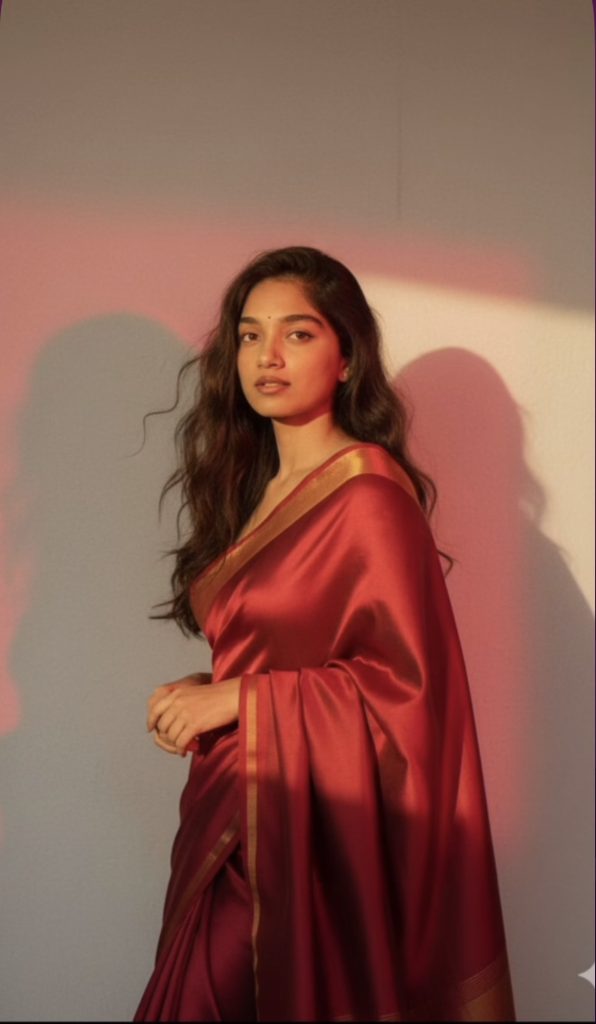
Prompt:
Create A soft, sunlit portrait of this face wearing a red satin silk saree with. She standing gracefully against a plain wall, bathed in warm natural light with red spot light artistic shadow Her gentle expression, loose hair strands moving slightly, and the dreamy golden glow create a serene, poetic, and romantic. She is looking like a model standing in the middle.

Prompt:
Create A soft, sunlit portrait based on the reference picture wearing a flowing sheer … saree with delicate floral white embroidery.
She sits gracefully against a plain wall bathed in warm natural
light with a triangular patch of sunlight casting artistic shadows. She holds a pastel bouquet of lavenders close to her chest.
Her gentle expression, loose hair strands moving slightly, and the dreamy golden glon create a serene, poetic, and romantic.

Prompt :
Create a retro vintage grainy but bright image of the reference picture but draped a perfect blue Pinteresty aesthetic saree .
It must feel like a 90’s movie red hair baddie with a small flower tuck visibly in her curls and windy environment romanticising with closed eyes. The girl is standing against a solid walde shadows and contrast drama, creating a mysterious and artistic atmosphere.
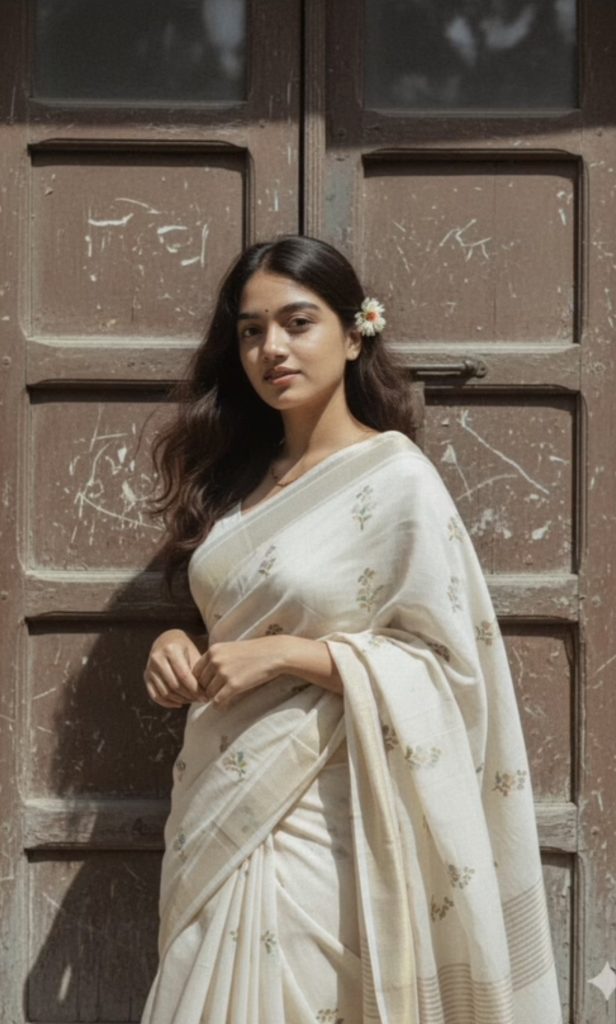
Create a retro, vintage-inspired image – grainy yet bright – based on the reference picture. The girl should be draped in a perfect off white cotton saree with red polka dots on it, Pinterest-style aesthetic saree. The vibe must capture the essence of a 90s movie dark brown-haired baddie, with silky hair and a small flower tucked visibly into her hair, enhanced by a windy, romantic atmosphere. She stands against an old wooden door, where deep shadows and dramatic contrasts add mystery and artistry to the scene, creating a moody yet enchanting cinematic effect.

Create a retro, vintage-inspired image – grainy yet bright – based on the reference picture. The girl should be draped in a perfect blue cotton saree with small white flower prints, paired with a white blouse with sleeves above the elbow, styled in a Pinterest-inspired aesthetic. The vibe must capture the essence of a 90s movie dark-brown-haired baddie, with silky hair and a small flower tucked visibly into her hair, enhanced by a windy, romantic atmosphere.
She is sitting on a wooden bench as a few leaves blow in the air, while dramatic contrasts add mystery and artistry to the scene, creating a moody yet enchanting cinematic effect.Her pose should suggest that she is reading a book.

Create a serene and dreamy outdoor portrait of a young woman sitting in tall grass at the edge of a meadow with misty green hills in the background. She is wearing a light-colored knee length one piece dress with flowers on it similar to a summer dress style, giving a soft and romantic vibe.
The woman is leaning back with one arm propped behind her for support, head tilted slightly back in a relaxed, graceful pose. Her expression is she romanticising the environment.
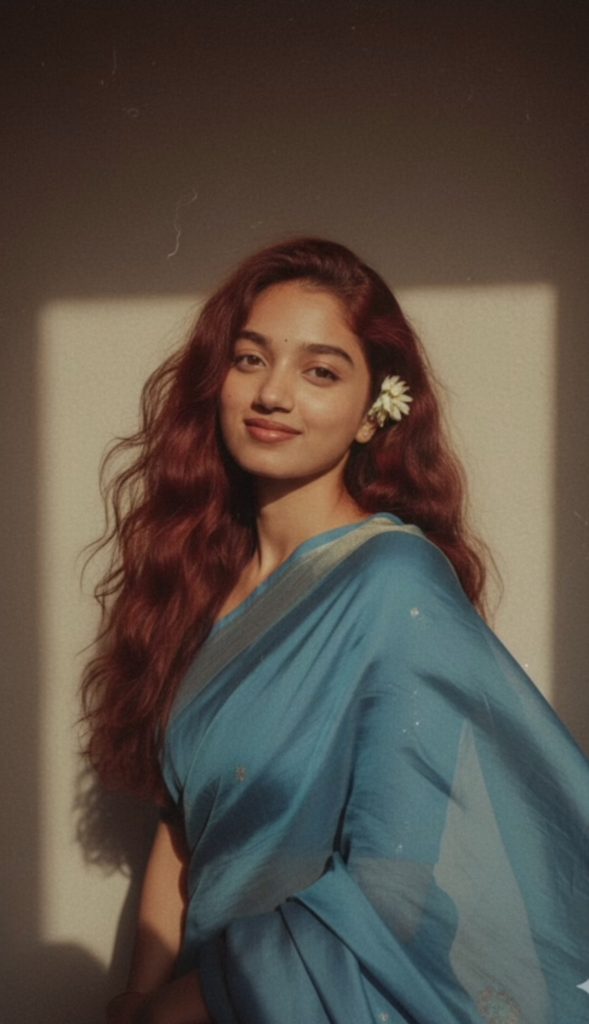
Create a retro vintage grainy but bright image of the reference picture but draped in a perfect blue Pinteresty aesthetic saree It must feel like a 90’s movie red hair baddie with a small flower tuck visibly in her curls and romanticising windy environment.
The girl is standing against a solid walde shadows and contrast draman creating a mysterious and artistic atmosphere.
1. How to Change or Remove a Background
This is one of the most popular uses for AI editing. Gemini can seamlessly replace a cluttered background with something clean or more scenic.
- Scenario: You have a great portrait shot, but the background is distracting.
- Example Prompt: “Remove the background from this image and replace it with a solid, light gray studio background.”
- Pro Tip Prompt: “Keep the person exactly as they are, but change the background to a blurred, professional office environment with warm lighting.”
2. How to Add or Remove Objects
Need to remove an unwanted photobomber or add a new element to your scene? Gemini’s generative capabilities, often called “inpainting,” handle this with ease.
- Scenario: A perfect beach photo is ruined by a piece of trash on the sand.
- Example Prompt (Removing): “Remove the plastic bottle from the sand in the bottom left corner.”
- Scenario: You have a product shot on a table and want to add a prop.
- Example Prompt (Adding): “Add a small, vibrant green plant in a terracotta pot on the table to the right of the laptop.”
3. How to Change Colors and Apply Artistic Styles
Instantly change the mood and aesthetic of your photo without fiddling with saturation or hue sliders.
- Scenario: You have a photo of a blue car but want to see what it looks like in red.
- Example Prompt: “Change the color of the car in this photo to a glossy, deep cherry red, but keep everything else the same.”
- Scenario: You want to give a modern digital photo a nostalgic feel.
- Example Prompt: “Apply a vintage, grainy 1980s film photo style to this image, with slightly faded colors and soft contrast.”
4. How to Adjust Lighting and Mood
Drastically alter the time of day or the emotional tone of an image with a single command.
- Scenario: A portrait taken in harsh midday sun looks flat.
- Example Prompt: “Change the lighting in this portrait to look like it was taken during the ‘golden hour’ just before sunset, with long, soft shadows and a warm glow.”
- Pro Tip Prompt: “Make this image more dramatic and cinematic by adding strong, directional lighting coming from the right side and deepening the shadows.”
Advanced Prompts for Professional-Level Control
To get high-quality, predictable results from Gemini, you need to master the art of the prompt.
- Be Hyper-Specific: Instead of “make it look better,” say “Enhance the details in the subject’s face, sharpen the eyes, and subtly increase the color vibrancy.”
- Use Descriptive Adjectives: Words like “realistic,” “photorealistic,” “4K,” “cinematic,” “soft,” “vibrant,” and “moody” guide the AI toward a specific aesthetic.
- Iterate and Refine: Your first result might not be perfect. Use it as a starting point. Upload the edited image and give Gemini a new prompt, like: “This is great, but now make the background even more out of focus.”
- Combine with Traditional Editors: For ultimate control, use Gemini for the heavy lifting (like replacing a sky) and then import the image into a tool like Adobe Lightroom or Snapseed for final color grading and fine-tuning.
Gemini vs. Photoshop: When to Use AI
| Feature | Google Gemini | Adobe Photoshop |
| Speed | Extremely fast for complex changes | Slower, requires manual work |
| Learning Curve | Very low, based on natural language | Very high, requires technical skill |
| Creative Ideation | Excellent for exploring new ideas | Limited only by user’s skill |
| Precise Control | Lower; AI makes creative choices | Absolute pixel-level control |
| Best For | Quick, drastic changes, background swaps, creative exploration | Professional retouching, precise composites, graphic design |
Frequently Asked Questions (FAQ)
Q: Is editing photos with Google Gemini free? A: Access to Gemini’s standard models is typically free, but Google may offer more powerful, advanced versions under a subscription model like Gemini Advanced.
Q: Can Gemini edit just one part of a photo without changing anything else? A: While you can instruct it to keep other parts the same, remember that Gemini re-generates the entire image. This can sometimes lead to subtle, unintended changes in other areas. The more specific your prompt, the better the result.
Q: What are the limitations of Gemini photo editing? A: Gemini can sometimes struggle with complex details like hands, text, or maintaining perfect photorealism across the entire image. It works best for broad, stylistic changes rather than minute pixel-perfect corrections.
Conclusion: Your New Creative Partner
Google Gemini is not just a tool; it’s a creative collaborator. By mastering prompt-based editing, you can accelerate your workflow, experiment with ideas effortlessly, and achieve stunning results that were once incredibly time-consuming. Whether you’re a social media manager, a content creator, or just someone looking to enhance their personal photos, Gemini offers an exciting and accessible new way to bring your vision to life.
Start experimenting today and watch how a few simple words can completely transform your images.